Gmail Listserv Guide
How to Create a Listserv in Gmail
Gmail has no button labelled "listserv" - but you can absolutely set one up. There are two ways to do it, and which one is right depends on what you actually need.
The first option is a contact label in Google Contacts. This is a personal shortcut that lets you email a whole group by typing one name. The second is a true Google Group at groups.google.com, which gives you a shared address with an archive and replies that go to everyone.
This guide covers both, step by step, with screenshots - plus the limits worth knowing before you rely on Gmail for a real, ongoing list, and a simpler alternative if those limits start to bite.
What People Mean by a "Listserv" in Gmail
A listserv is an email-based mailing list: one address fans a message out to many people, and - depending on the setup - replies can go back to the whole group. The word comes from the original LISTSERV software, but today people use it loosely to mean any group email or email discussion list. It is worth reading up on what a listserv actually is so you can match the right tool to the job.
That distinction matters in Gmail. A contact label is not a true listserv - there is no shared address and no group reply, it is just a faster way for you to address an email. A Google Group is much closer to the real thing: a shared address, an archive, and the option for replies to reach everyone. If you only want to send a group email in Gmail occasionally, the label is plenty. If you want conversation, the Google Group is the starting point.
Method 1: Create a Group With a Gmail Contact Label
A contact label is a tag you attach to a set of contacts. Once it exists, you can email everyone with that label in one go. It is the quickest way to fake a listserv in Gmail, and it takes about five minutes.
Step 1: Open Google Contacts
Go to contacts.google.com and sign in with the same account you use for Gmail. You will see all of your saved contacts.
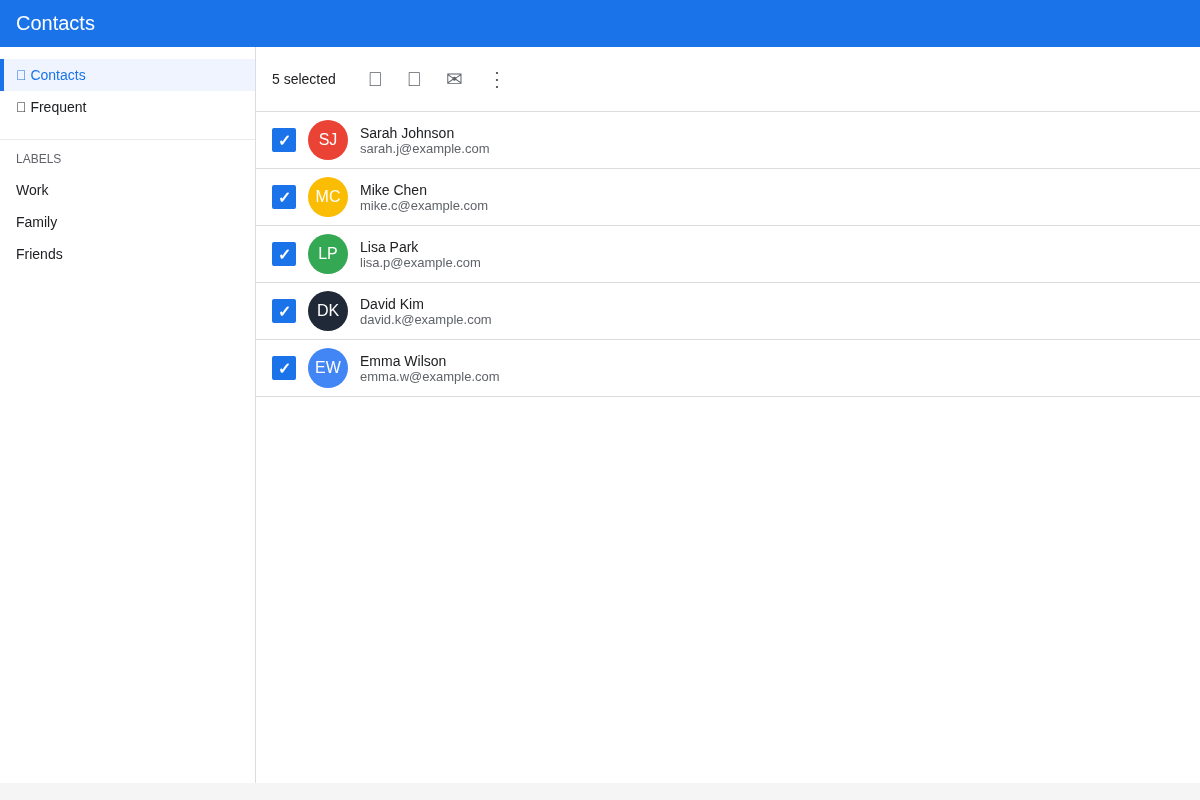
Step 2: Select Your Contacts
Hover over each person and tick the checkbox to select them. If the people you want are not saved yet, click Create contact to add them first, then come back and select them.
Step 3: Create a Label
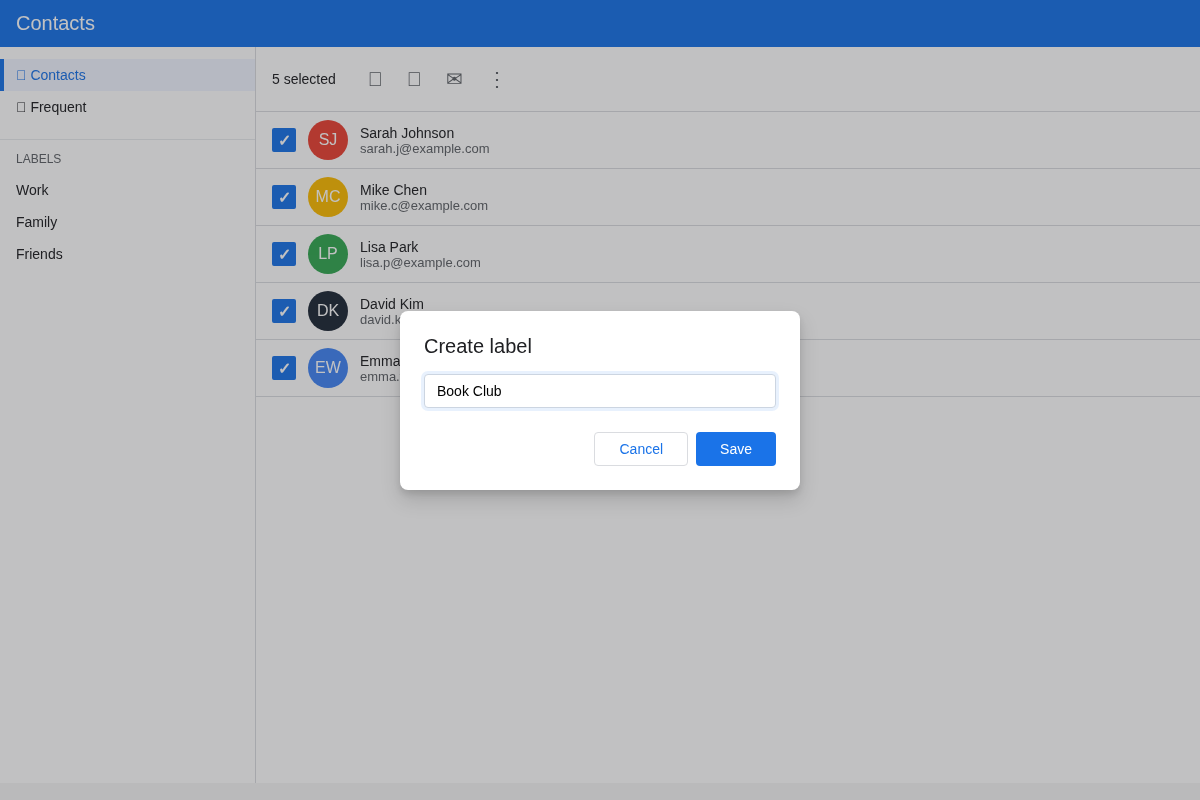
With your contacts selected, click the Label icon (the tag), choose Create label, give it a clear name such as "Book Club" or "PTA Committee," and click Apply. Your label now appears in the left sidebar, where you can open it any time to add or remove people.
Step 4: Send to the List From Gmail
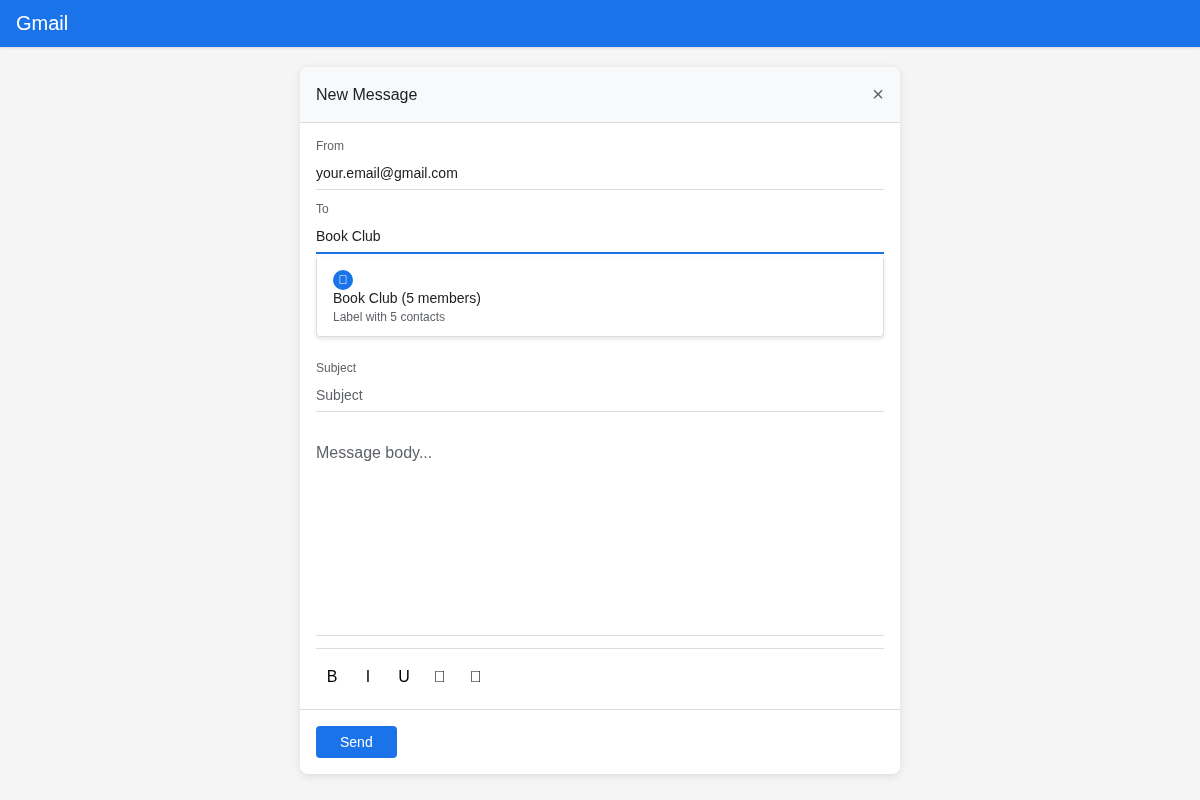
Open Gmail, click Compose, and start typing the label name in the To field. Gmail suggests the label and expands it to every address in the group. To keep recipients hidden from each other, type the label into the Bcc field instead and put your own address in To. Write your message and hit Send.
Editing the List Later
You can rename or delete a label, and add or remove people from it, at any time in Google Contacts. One quirk to know: contact labels cannot be created in the Google Contacts iOS app - you have to set them up on the desktop web at contacts.google.com. Once created, they sync to mobile and you can send from your phone normally.
Method 2: Create a True Google Group
If you want a real shared address, a searchable archive, and replies that go to everyone, a Google Group is the closest thing Gmail's ecosystem offers to a genuine listserv.
Step 1: Create the Group
Go to groups.google.com and click Create group.
Step 2: Name It and Set the Address
Give the group a name and choose its email address - for example,
bookclub@googlegroups.com. This is the single address everyone will write to.
Step 3: Set Privacy and Reply Behaviour
Decide who can search for, join, post to, and view the group. Crucially, set "Post replies to" - choose the whole group for a discussion list, or the sender only for announcements. This single setting is what turns a Google Group into a true two-way listserv.
Step 4: Add Members
Add your members and choose how each receives mail: Each email, Digest, Abridged, or No email. After creating the group, wait a few minutes before sending your first message, or it may bounce while the group finishes setting up.
A note for organisations: Google Workspace admins can also create groups from the Admin console, and only Admin-console groups can be used as configuration groups. For a fuller comparison, see our simpler alternative to Google Groups.
Contact Label vs Google Group - Which Should You Use?
A contact label is the simplest option. It is personal, takes minutes, and needs nothing from your recipients - but there is no shared address and no group reply, so it is really just a sending shortcut for you.
A Google Group gives you the real listserv features: a shared address, an archive, membership controls, and replies to all. The trade-off is more setup, a more account-gated experience, and members generally needing a Google account to take part fully.
As a rule of thumb: choose a label for a handful of people you email now and then, and a Google Group when you genuinely need conversation, history, and self-service membership.
The Limits of Doing This in Gmail
Both methods work, but Gmail was never designed to run a serious list. The rough edges show up quickly:
Labels are personal, not shareable. A contact label lives on your account only - a co-admin cannot see or send to it.
Replies do not reach the group with labels. A reply goes to the original sender, so there is no real discussion.
Recipient addresses are exposed. Unless you use Bcc, everyone sees everyone else's email address.
Sending limits and silent drops. Free Gmail caps at 500 messages a day and 500 recipients per message; Google Workspace allows up to 2,000 messages a day and up to 3,000 unique recipients - and every To, Cc, and Bcc address counts as one recipient (per Google Workspace Help). On large lists, recipients can be skipped silently.
No moderation, join, or shared archive with labels. There is no self-service sign-up, no way to moderate messages, and no searchable history.
Google Groups has its own friction. It can suffer spam-placement and deliverability issues, and the dated, account-gated interface is more than most informal groups want.
None of these are bugs - Gmail is an email client, not a group communication platform. For occasional one-way emails it is genuinely fine. For an active list, the limits add up.
A Simpler Alternative for Real Groups
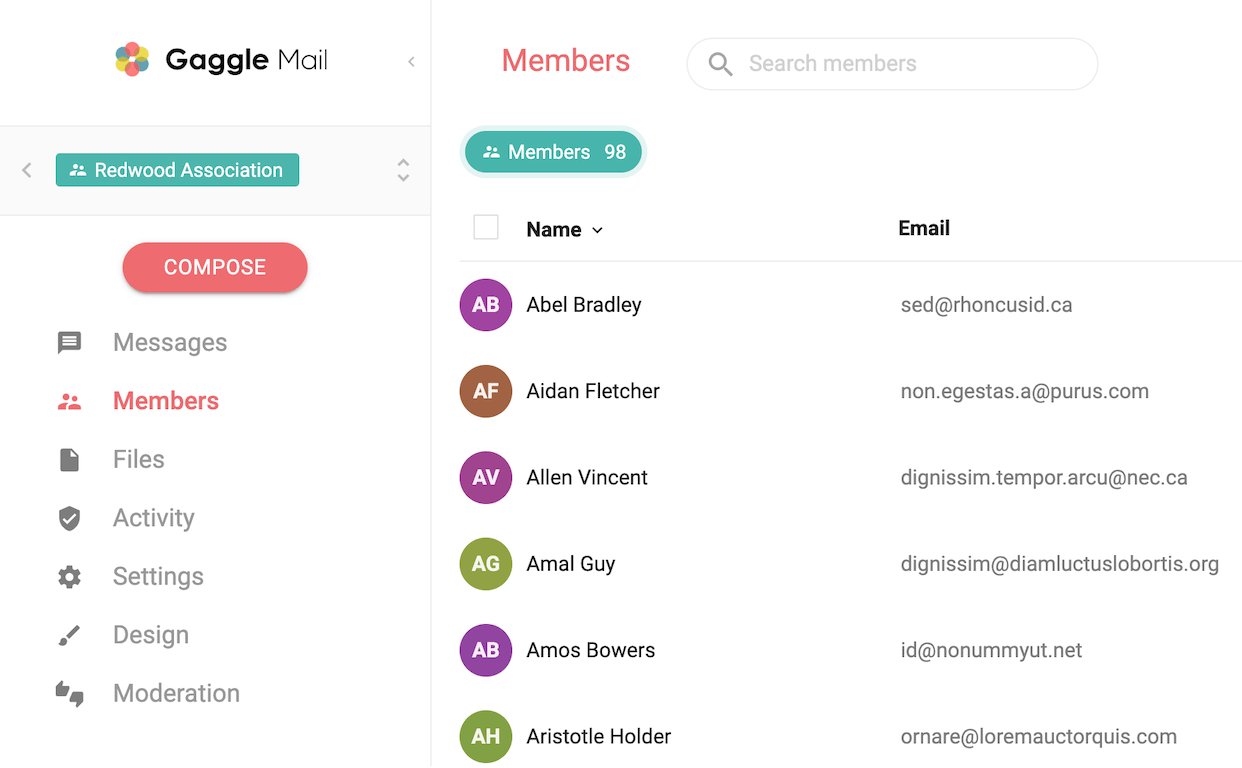
By the way - if you need group replies, self-service membership, privacy by default, a shared archive, and delivery that just works across any email provider (no Google account required), a dedicated tool is far easier than wrestling Gmail into the role.
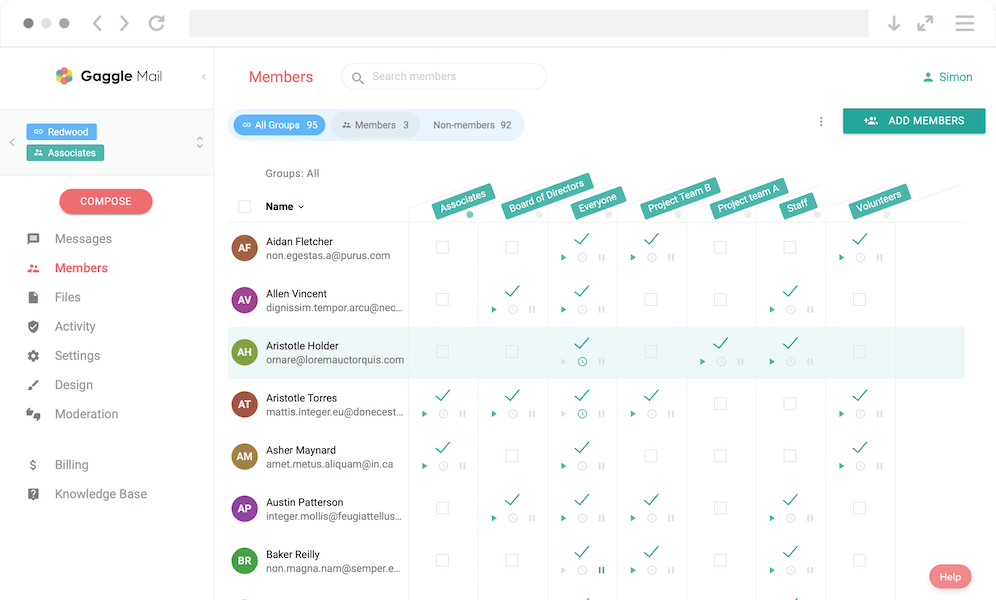
Gaggle Mail
gives your group one address - for example, bookclub@gaggle.email - and is
free for groups up to 200 members.
It takes about two minutes to set up and includes:
- Replies to the whole group (or sender-only if you prefer)
- Self-service join and leave so you are not managing a list by hand
- Privacy by default - member addresses are never exposed
- A searchable shared archive so new members can catch up
- Moderation and daily digests built in
Honest note: if you just email the same five to ten people occasionally and replies do not matter, a Gmail label is perfectly fine - stick with Method 1 above. The dedicated tool earns its place only when the limits actually start to get in your way. If privacy is your main concern, you might also like our guide on how to send a group email without showing recipients.
Gmail Contact Label vs Google Group vs Gaggle Mail
| Feature | Gmail contact label | Google Group | Gaggle Mail |
|---|---|---|---|
| Shared group address | No | Yes | Yes |
| Group replies to all | No | Yes | Yes |
| Members need a Google account | No (it's your personal list) | Yes, to fully participate | No |
| Self-service join/leave | No | Yes | Yes |
| Searchable shared archive | No | Yes | Yes |
| Moderation | No | Yes | Yes |
| Recipient privacy | Bcc workaround | Configurable | Private by default |
| Setup difficulty | Very easy | Moderate | Very easy |
| Best for | A few personal contacts | Workspace orgs | Clubs, associations, communities |
For a wider look at the options, see our full comparison of group email services, or learn more about creating a group email in Gmail.
Frequently asked questions
What people are saying
Join thousands of communities using Gaggle Mail
“Gaggle Mail transformed how our neighborhood association communicates. It's so intuitive that even our less tech-savvy members participate actively. The moderation tools are exactly what we needed.“

“Overall technical execution and ease-of-use make Gaggle Mail the best option in the market.“

“Solid, stable. Just works. Great interface. Works for everything we need.“

“Amazing alternative to google groups, which forces you to have a gmail account and is complex to join as a user.“

“Your service never fails and when we have questions, you respond immediately!“

“Outstanding service. Whenever we have a question or face an obstacle someone is there to assist.“

“It's straightforward. It works. No advertising banners. We love it!“

“The customer support is outstanding. Any questions we had while setting up our alumni network were answered promptly and thoroughly.“

“I love Gaggle Mail because I have never had a problem. It just works.“

“The migration from our old listserv was smooth and the interface is modern and clean. Our members adapted to it immediately.“

“I use it for a Boy Scout troop. I tried a couple of other applications and yours is by far the best.“

Need a real listserv, not a workaround? Get started for free today.
Create a proper group address with privacy, replies, moderation, and a shared archive built in - about two minutes to set up.
Get Started