Private Group Email Guide
How to Send a Group Email Without Showing Recipients (Gmail, Outlook, or Any App)
To send a group email without showing recipients, put your own address in the To field and every recipient in BCC. Each person sees only your address. This works in Gmail, Outlook and any email app, up to each provider's recipient limit (about 500 in Gmail, 500 in Outlook.com). For regular group emails, a group address is simpler and has no limit.
You need to email a group - a neighbourhood watch, a club, a parent mailing list, a church group - but putting everyone's address in the To field means every recipient can see every other recipient's email. That's a privacy issue, it looks unprofessional, and depending on your group, it might even violate data protection rules.
Emailing the same group every week (a club, a board, a congregation, a class)? BCC is the wrong tool. Skip to the simpler option ↓
How BCC (Blind Carbon Copy) Works
Every email has three address fields: To, Cc (carbon copy), and Bcc (blind carbon copy). People in To and Cc can see each other. People in Bcc are invisible to everyone, including each other.
That makes BCC the go-to method for sending a group email without exposing addresses — and it's built into every email app you already use.
How to Hide Recipients in Gmail
- Open Gmail and click Compose to start a new email.
- In the compose window, click Bcc on the right side of the To field.
- The BCC field appears below To and Cc.
- Put your own email address in To.
- Add recipients in Bcc, either as individual addresses or a contact label if you already created a group email in Gmail.
- Write your subject and message, then click Send.
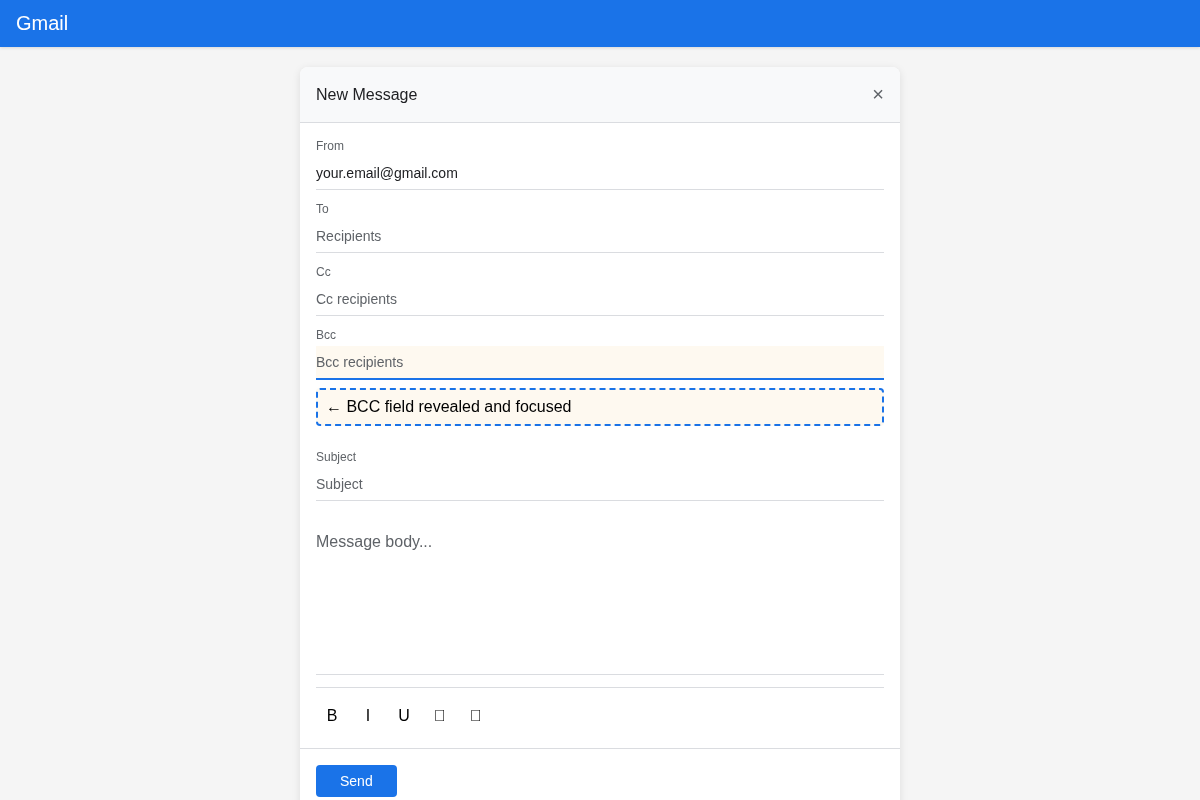
Each recipient sees only your address in To, not who else received the email.
Note: replies to a BCC email come back to you alone, and there is no way for people to unsubscribe. A group email address fixes both.
How to Hide Recipients in Outlook
The Bcc field is hidden by default in Outlook, which catches a lot of people off guard. Where it hides depends on which Outlook you have.
Hide recipients in new Outlook and Outlook on the web
- Click New mail.
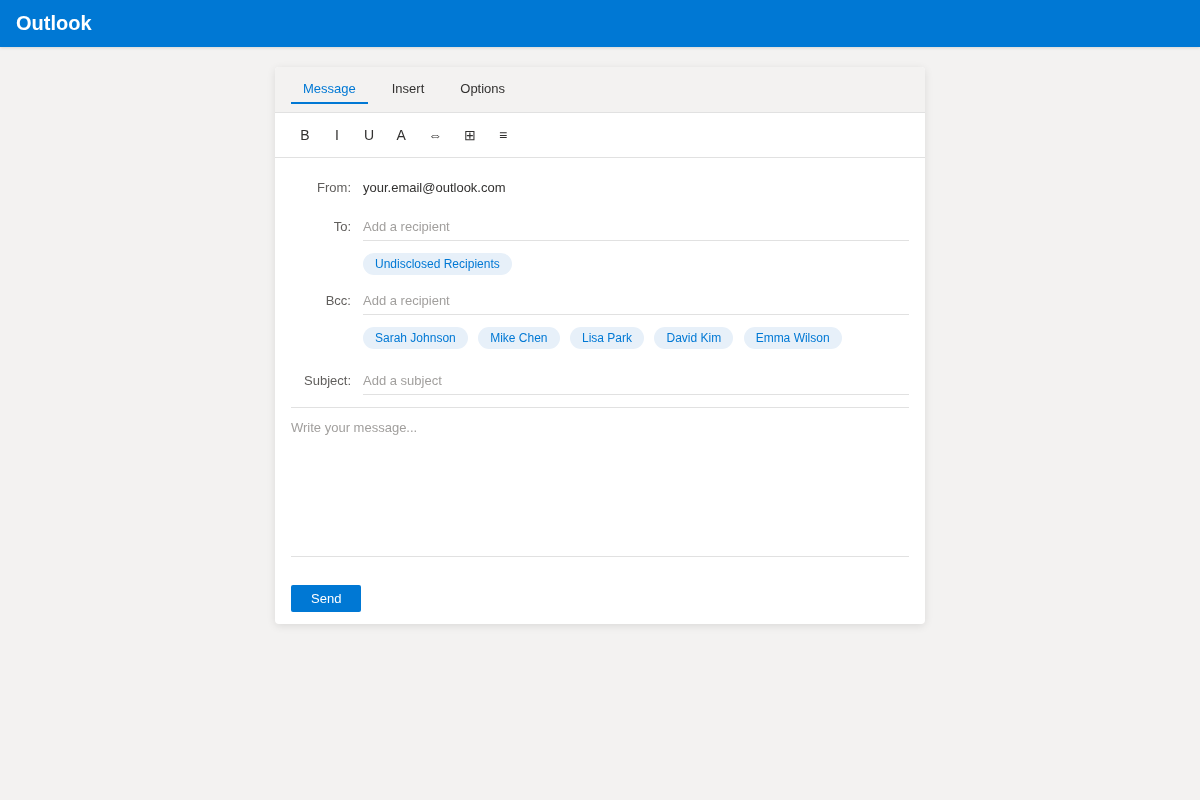
- Click Bcc at the right-hand end of the To line (beside Cc).
- Put your own email in To and your recipients, or the name of a contact list, in Bcc.
- Write your message and click Send.
Hide recipients in classic Outlook
- Click New Email.
- Open the Options tab, then click Bcc. The field stays visible for future messages.
- Add your own address in To and recipients in Bcc.
- Write your message and click Send.
If you've created a distribution list in Outlook - or you'd rather create an email group in Outlook first - you can type the group name in Bcc to add all members at once.
Note: replies to a BCC email come back to you alone, and there is no way for people to unsubscribe. A group email address fixes both.
The “Undisclosed Recipients” Trick
You may have seen emails showing "Undisclosed Recipients" in To. This is a polished variation of BCC, especially common in Outlook:
- Create a contact named Undisclosed Recipients using your own email address.
- Save the contact.
- Use that contact in To when composing.
- Add actual recipients in Bcc.
Recipients see "Undisclosed Recipients" in To instead of your personal address, which looks cleaner and signals private sending. It's still BCC underneath, though, so the limits and drawbacks below still apply.
Recipient Limits: When BCC Stops Working
BCC does not scale. Every provider caps how many people you can put on one message and how many you can email in a day, and the caps are lower than most group organisers expect. Go over them and the message is rejected. Get near them regularly from a personal account and spam filters start treating you as a bulk sender, so your emails land in junk folders even when they do send. The published limits, as of September 2026 (check the provider's own help page, because they change):
| Provider | Recipients per message | Recipients per day | Documented in |
|---|---|---|---|
| Gmail (personal account) | 500 from the web; 100 from a mail app (IMAP/SMTP) | 500 | Google's "Gmail sending limits" help page |
| Outlook.com | About 500 | Daily cap, lower on new accounts | Microsoft's "Outlook.com sending limits" help page |
| Microsoft 365 (Exchange Online) | 500 by default; varies by plan and admin settings | 10,000 | Microsoft's "Exchange Online limits" page |
| Yahoo Mail | 100 | 500 | Yahoo's "Sending limits in Yahoo Mail" help page |
| iCloud Mail | 500 | 1,000 | Apple's "iCloud Mail sending limits" support page |
A group email address has none of these caps: the service sends each member an individual copy from its own infrastructure, so a 2,000-member list is as easy to reach as a 20-member one.
Why BCC Fails for Regular Group Emails
BCC is a workaround for not having a mailing list. It works for a one-off announcement, but if you email the same group every week — a committee, a congregation, a neighbourhood list — its drawbacks add up fast. Each one has a fix:
Key limitations of BCC
With a group address
Replies only go to you. Recipients cannot reply to the whole group, so there is no discussion — just a broadcast.
Replies reach the group. Or just you, if you prefer; it is a setting, not a workaround.
No unsubscribe. People have to ask you to be removed, and you have to remember to edit the list.
Self-service leave (and join). Every message carries an unsubscribe link, and new members can sign themselves up.
You hit recipient limits. 100 to 500 addresses per message, and spam filters get suspicious well before that.
No limit. Each member gets an individual copy from the service's own servers, whatever the size of the group.
No history. A new member cannot see what was sent before they joined, and neither can you once it leaves your sent folder.
A searchable archive. Every message is kept where any member can find it.
The Alternative: A Group Address That Hides Everyone by Default
This is exactly the problem a
group email service
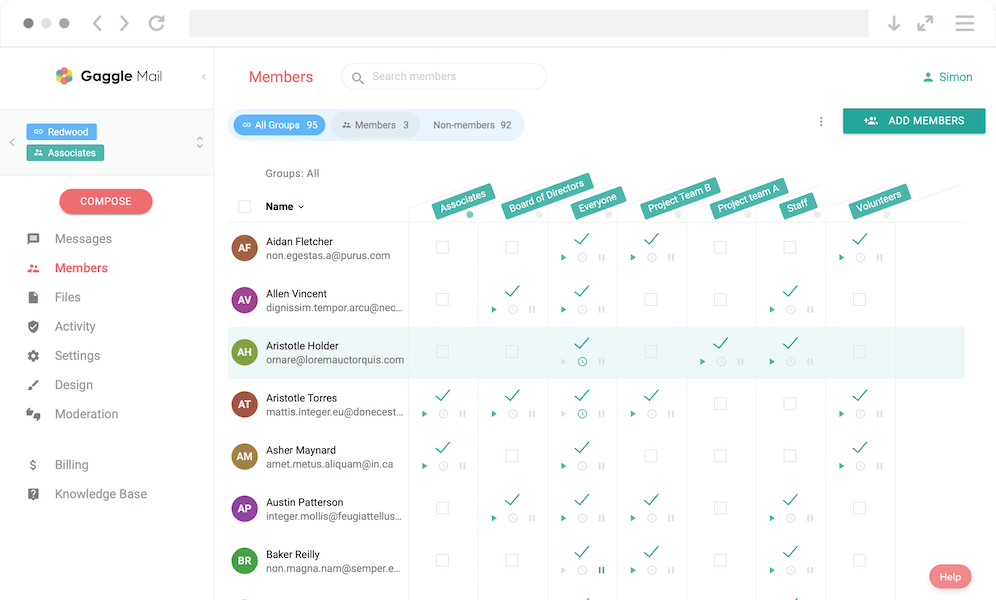
solves. Your group gets one shared address, like neighbourhood@gaggle.email. Members
email that address and the service delivers each member their own individual copy —
no addresses exposed, replies managed, and people can join or unsubscribe themselves.
How it helps
How Gaggle Mail Handles This
Free plan available
Gaggle Mail has a free plan for groups of up to 200 members and is built specifically for group email.
- Privacy is automatic. Member addresses are never visible to each other.
- Replies can go to the group. Configure whether replies go to everyone or only the sender.
- Members can self-manage. People can join and leave without manual list maintenance.
- Shared archive. Messages are stored in a browsable history.
- Moderation. You can approve messages before delivery.
- Digest option. Members can choose daily or weekly summaries.
It works with Gmail, Outlook, Yahoo, and other providers. Members keep their existing inbox.
Takes 2 minutes • No credit card
How Does It Compare?
| Feature | Gaggle Mail | BCC | Undisclosed Recipients |
|---|---|---|---|
| Hides recipient addresses | ✓ (automatic) | ✓ | ✓ |
| Replies go to the group | ✓ (configurable) | ✗ | ✗ |
| Self-service join/leave | ✓ | ✗ | ✗ |
| Shared message archive | ✓ | ✗ | ✗ |
| Recipient limit | None | 100-500 per message | 100-500 per message |
| Spam risk with large groups | Low | High | High |
| Moderation | ✓ | ✗ | ✗ |
| Digest emails | ✓ | ✗ | ✗ |
| Setup time | 2 minutes | None | 2 minutes |
| Works for ongoing groups | ✓ | Poorly | Poorly |
For more detail on alternatives, see our comparison of group email services.
What to do next
- A one-off email to fewer than 100 people? Use BCC, following the steps above.
- Recurring emails to the same people? Set up a group address, free for up to 200 members.
- Sending on behalf of an organisation? A group address on your own domain, so messages come from an address like announcements@yourclub.org.
Weighing up the group email services themselves? See our comparison of group email services.
Frequently asked questions
What people are saying
Join thousands of communities using Gaggle Mail
“Gaggle Mail transformed how our neighborhood association communicates. It's so intuitive that even our less tech-savvy members participate actively. The moderation tools are exactly what we needed.“

“Overall technical execution and ease-of-use make Gaggle Mail the best option in the market.“

“Solid, stable. Just works. Great interface. Works for everything we need.“

“Amazing alternative to google groups, which forces you to have a gmail account and is complex to join as a user.“

“Your service never fails and when we have questions, you respond immediately!“

“Outstanding service. Whenever we have a question or face an obstacle someone is there to assist.“

“It's straightforward. It works. No advertising banners. We love it!“

“The customer support is outstanding. Any questions we had while setting up our alumni network were answered promptly and thoroughly.“

“I love Gaggle Mail because I have never had a problem. It just works.“

“The migration from our old listserv was smooth and the interface is modern and clean. Our members adapted to it immediately.“

“I use it for a Boy Scout troop. I tried a couple of other applications and yours is by far the best.“

Need a better way to run group email?
Create a real group email address with privacy, replies, moderation, and archive built in.
Create your free groupTakes 2 minutes • No credit card