Outlook Listserv Guide
How to Create a Listserv in Outlook
Outlook has no button labelled "listserv." The equivalent is a Contact Group in classic Outlook, a Contact List in new Outlook and Outlook on the web (the same thing, renamed), or a Microsoft 365 distribution list created by an admin to give your group a real shared address.
Microsoft is moving everyone onto new Outlook (a rollout running through 2026), so the exact labels and menus differ depending on which version you are using. This guide covers every one — classic desktop, new Outlook, Outlook on the web, Outlook for Mac, and the Microsoft 365 admin center — then explains the limits of each and a simpler alternative when those limits get in the way.
If you are new to the term, start with our explainer on what a listserv is. This page is the practical companion: how to actually build one in Outlook.
Setting up a list for a club, board, HOA or church, where everyone needs to send and reply? A contact group is not built for that. Skip to the simpler option ↓
Listserv vs Outlook's options — a quick orientation
A listserv is an email mailing list: one address that, when emailed, sends the message to every subscriber. The classic LISTSERV software added subscribe and unsubscribe handling, archives, and moderation on top of that idea. So when people ask how to "create a listserv in Outlook," what they usually want is one of two things — and it matters which.
A personal contact group or contact list is private to
you. It lives in your own contacts, and typing its name in the To field expands it into
every address. Convenient, but nobody else can use it and there is no shared address. A
Microsoft 365 distribution list is the true shared-address equivalent — a real
address like team@yourcompany.com that anyone in your organization can email — but it
has to be created by an admin and only reaches people inside your tenant.
Below we cover both, starting with the personal options that anyone can set up. (Weighing up Outlook's group features more broadly, including Microsoft 365 groups? See our guide to creating an email group in Outlook. Gmail user instead? See how to create a listserv in Gmail. For the three ways to create one, in Outlook or not, see how to create a listserv.)
How to Create a Contact Group in Classic Outlook (Windows)
In classic Outlook for Windows, the feature is called a Contact Group (older versions called it a distribution list). It is the closest thing to a personal listserv you can build without an admin.
Step 1: Go to People
Open Outlook and click the People icon in the navigation bar (it may look like two silhouettes). This opens your contacts view. A quick shortcut is Ctrl+Shift+L, which jumps straight to creating a new contact group.
Step 2: Create a New Contact Group
On the Home tab, click New Contact Group in the ribbon. A new window opens. Type a clear name in the Name field — something like "Book Club," "Board Members," or "Street Committee."
Step 3: Add Members
Click Add Members in the ribbon. You get three choices: From Outlook Contacts, From Address Book, or New Email Contact (to type in an address that isn't saved yet). Mix and match as needed until everyone is added.
Step 4: Save and Close
Click Save & Close. The group now appears in your contacts and is ready to use.
Step 5: Send an Email to the Group
Start a new message and type the group name in the To field. Outlook suggests the contact group — select it and every member's address fills in automatically.
To edit it later, open the group from People and use Add Members or Remove Member, then save again.
How to Create a Contact List in New Outlook & Outlook on the Web
In new Outlook for Windows and Outlook on the web (outlook.com or outlook.office.com), Microsoft calls the same feature a Contact List. The two share the same data store, so a list you create in one appears in the other.
Step 1: Open People
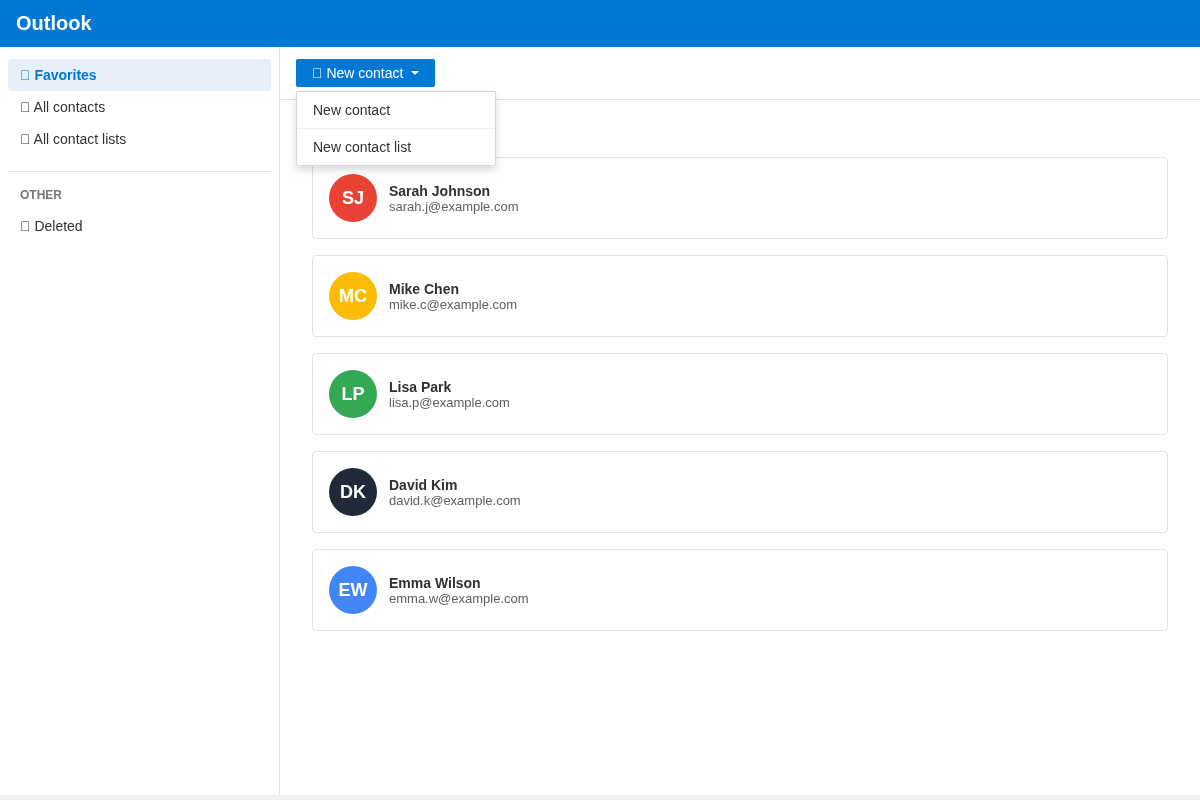
Click the People icon in the left navigation. This opens your contacts view.
Step 2: Choose New Contact List
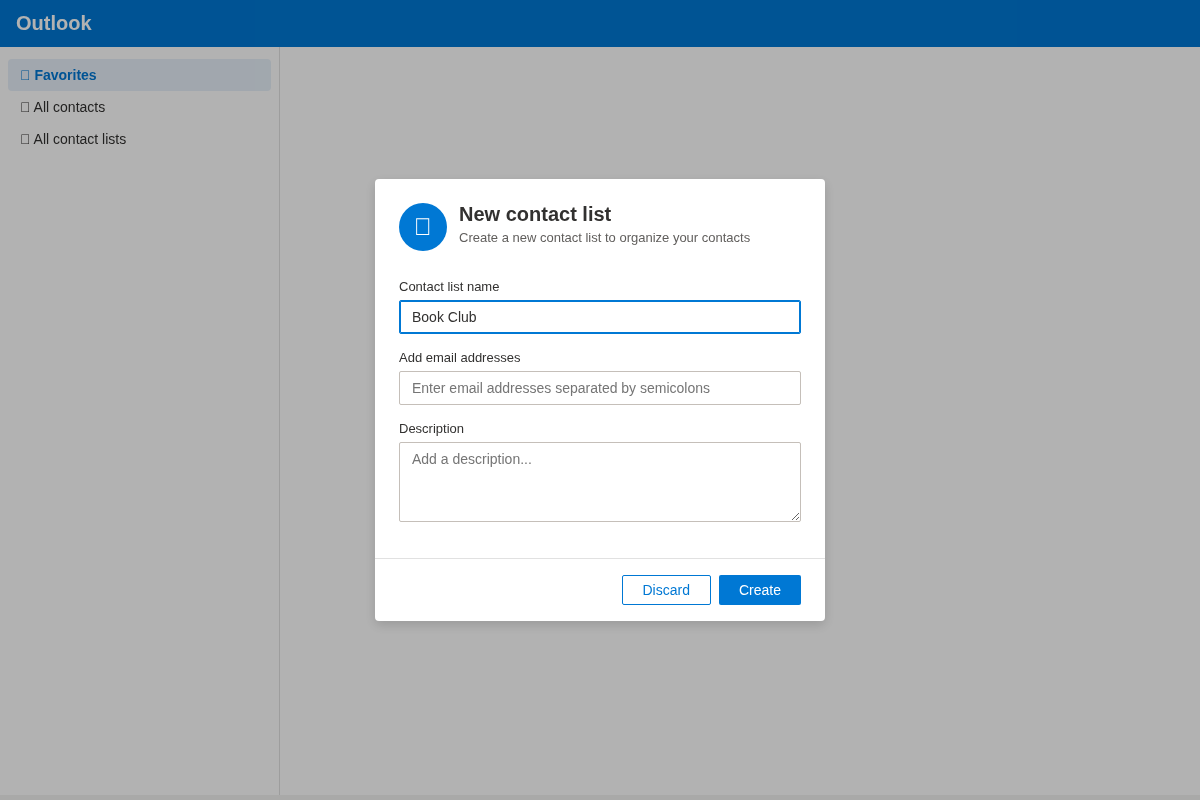
Click the arrow next to New contact at the top, then select New contact list. A dialog appears asking for a name and addresses.
Step 3: Name It, Add Members, and Create
Give the list a name (for example, "Book Club"), add email addresses in the field below, and an optional description. Click Create — the list is saved and ready.
Step 4: Email the Group
Compose a new email and start typing the list name in the To field. Outlook suggests it; select it and the addresses populate automatically.
One thing to watch during the rollout: classic contact groups may not migrate automatically to new Outlook. Microsoft's guidance is to recreate them as contact lists if they don't appear after switching.
How to Create a Contact List in Outlook for Mac
On a Mac, open People, click New Contact List, add your members, and choose Save & Close. If New Contact List is greyed out, go to Preferences → General and uncheck "Hide On My Computer folders", then try again.
Note that the newest Outlook for Mac has at times temporarily restricted contact-list creation as Microsoft reworks the app, so the option may be missing on very recent builds. If so, you can create the list in Outlook on the web instead — it will sync to your Mac.
How to Create a Microsoft 365 Distribution List (Admin)
If you want a real shared address rather than a private list, and you have admin rights to a
Microsoft 365 (formerly Office 365) tenant, you can create a distribution list in the admin center.
This creates an actual group address like team@yourcompany.com.
How to Set It Up
- Sign in to the Microsoft 365 admin center — you need admin privileges.
- Go to Teams & groups then Active teams & groups.
- Choose Add a group and select Distribution list.
- Set the group name and email address.
- Add members from your organization's directory.
- Configure settings such as whether external senders and non-members are allowed to send to the group.
This is the genuine shared-address option, but it comes with two big caveats: it requires admin rights (most regular users can't create one), and it only reaches people inside your tenant. That makes it a poor fit for clubs, associations, volunteer groups, or anyone who needs to include people on Gmail, Yahoo, or other providers.
Distribution List vs Microsoft 365 Group vs Shared Mailbox
The admin center offers a few similar-sounding options. Here's the difference so you pick the right one:
- Distribution list — broadcasts a message to everyone's individual inbox. No shared space, no archive.
- Microsoft 365 Group — adds a shared mailbox, calendar, SharePoint site, and Teams workspace on top of the address. Heavier, but collaborative.
- Shared mailbox — a single inbox that several people open, read, and reply from, like
support@.
Rule of thumb: if you just need to send the same email to the same people, a contact list or distribution list is enough. If the group needs a shared inbox, files, or calendar, reach for a Microsoft 365 Group instead.
The Limits of Outlook for Group Email
Every one of the methods above works for occasional, one-directional emails. But once a group communicates regularly — or grows — Outlook starts to creak:
- Personal lists are private and not shareable. A contact group or contact list lives only in your account. Nobody else can send to it, and if you leave, it goes with you.
- A hard 500-recipient-per-message cap. Microsoft 365 and Exchange Online enforce an unmodifiable limit of 500 recipients per message, with around 10,000 daily recipients (2,000 external) (Microsoft Learn). Free Outlook.com accounts are far lower — commonly cited around 300 recipients per day.
- M365 lists need an admin and stay inside your tenant. The only true shared-address option requires IT and won't reach external members.
- No self-service join or leave. You (or an admin) add and remove everyone by hand. Members can't subscribe or unsubscribe themselves.
- No shared, searchable archive. Conversations live in individual inboxes. New members can't catch up on what they missed.
- Static lists drift out of date. Former employees, bounced addresses, and typos accumulate, and someone has to clean them up manually.
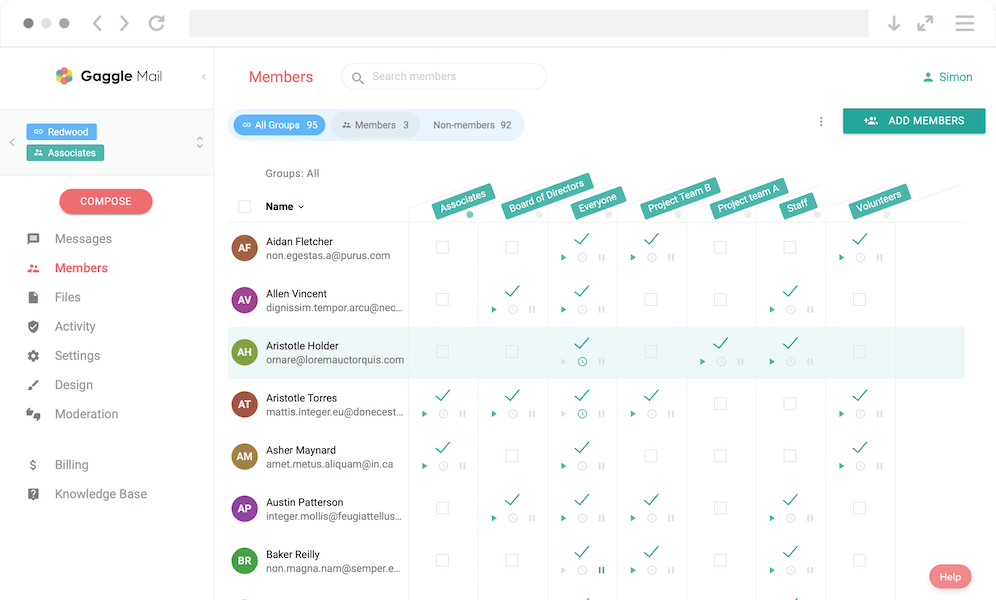
A Simpler Alternative: Gaggle Mail
If your group spans multiple organizations or email providers, needs self-service membership, wants a shared archive, and shouldn't depend on IT, a dedicated group-email service is the easier path. Gaggle Mail gives you one address that works across Outlook, Gmail, Yahoo, and Apple Mail — no admin required, and it's free for up to 200 members.
Members can join and leave themselves, replies go to the whole group, and every message lands in a searchable shared archive new members can browse. You also get moderation and an optional daily digest.
An honest note: if you're a small internal team already on Microsoft 365, a contact list or an M365 distribution list is perfectly adequate — there's no need to add another tool. Gaggle Mail earns its keep for cross-provider, external, or volunteer-run groups where Outlook's private, tenant-bound lists fall short.
Give your group its own address
Free for small groups, no credit card. Members keep using Outlook, Gmail, or whatever they already have.
Outlook group options vs Gaggle Mail
| Feature | Contact Group / List (personal) | M365 Distribution List | Gaggle Mail |
|---|---|---|---|
| Shared group address | ✗ | ✓ | ✓ |
| Needs admin to create | ✗ | ✓ | ✗ |
| Works for external / non-org members | You add them manually | Limited | ✓ |
| Self-service join / leave | ✗ | ✗ | ✓ |
| Shared searchable archive | ✗ | ✗ | ✓ |
| Moderation | ✗ | Limited | ✓ |
| Recipient limit | ≈500 / message | 500 / message, capped daily | Scales |
| Works across any email provider | Manual | Tenant only | ✓ |
| Best for | Personal recurring emails | Internal company lists | Clubs, associations, communities |
See the full comparison of group email services, our guide to a modern listserv alternative, or the sibling walkthrough on creating a distribution list in Outlook.
What to do next
For a small internal team, an Outlook contact list or a Microsoft 365 distribution list does the job. For a club, association, or any group that crosses email providers and needs members to manage themselves, a dedicated group email address is far less work to run.
Try Gaggle Mail free and launch a group address that works across Outlook, Gmail, Yahoo, and Apple Mail.
Frequently asked questions
What people are saying
Join thousands of communities using Gaggle Mail
“Gaggle Mail transformed how our neighborhood association communicates. It's so intuitive that even our less tech-savvy members participate actively. The moderation tools are exactly what we needed.“

“Overall technical execution and ease-of-use make Gaggle Mail the best option in the market.“

“Solid, stable. Just works. Great interface. Works for everything we need.“

“Amazing alternative to google groups, which forces you to have a gmail account and is complex to join as a user.“

“Your service never fails and when we have questions, you respond immediately!“

“Outstanding service. Whenever we have a question or face an obstacle someone is there to assist.“

“It's straightforward. It works. No advertising banners. We love it!“

“The customer support is outstanding. Any questions we had while setting up our alumni network were answered promptly and thoroughly.“

“I love Gaggle Mail because I have never had a problem. It just works.“

“The migration from our old listserv was smooth and the interface is modern and clean. Our members adapted to it immediately.“

“I use it for a Boy Scout troop. I tried a couple of other applications and yours is by far the best.“

Need a better way to run group email?
Create a real group email address with privacy, replies, moderation, and archive built in.
Create your free groupTakes 2 minutes • No credit card