
Guide (2026)
Email List Management: How to Keep a Group Email List Accurate and Easy to Run
Email list management is the work of keeping a group's email list accurate: adding and removing people, letting members join or leave on their own, deciding who can send, and handling bounced addresses. Done by hand in a spreadsheet or contact group it takes hours a month; done with a group email service it runs itself.
Managing a marketing list of subscribers or leads? That is a different job; see group email vs email marketing. This page is about member lists for organisations.
Updated September 2026
What Email List Management Actually Involves
Whoever keeps the list, whether a membership secretary, an office manager or a volunteer, ends up doing the same six things:
- Adding people: one at a time, by CSV, or by sync from the membership system that already knows who has paid.
- Removing people: leavers, duplicates, and addresses that stopped existing when someone changed jobs or providers.
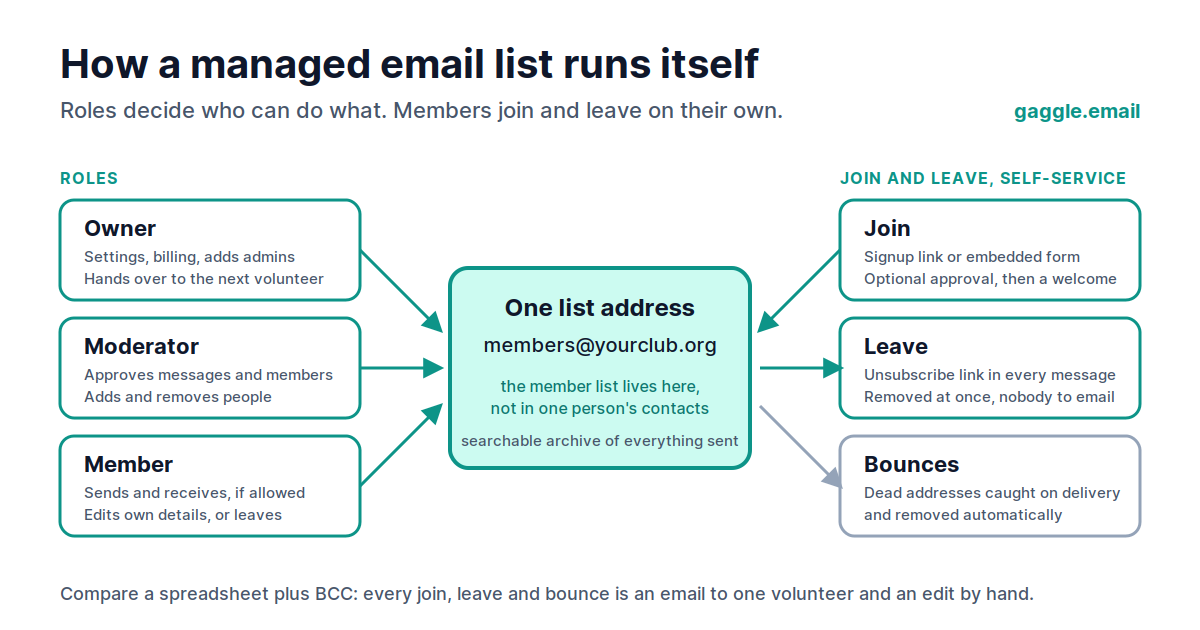
- Self-service join and leave: a link people use themselves; "reply STOP to unsubscribe" on a BCC list is a request for you to do it by hand, which is the opposite.
- Roles and sending permissions: who owns the list, who moderates it, who is a member, and whether the list is announcement-only or a discussion anyone can post to.
- Bounce and complaint handling: retrying soft bounces, removing hard bounces, and honouring spam complaints so the whole list's deliverability is not dragged down.
- Keeping a record: who joined when, who left, and what was sent, so the next volunteer inherits a list and not a mystery.
The Three Ways People Manage a Group Email List
Almost every organisation's list is run one of three ways. The first two are free and familiar, and both break at the same point: the moment the list is bigger than one person can keep in their head.
| Spreadsheet + BCC | Contact group or distribution list | Group email service | |
|---|---|---|---|
| Effort per month | Hours: every change is a manual edit and a re-paste | An hour or two of edits, by one person | Minutes: approvals and the occasional role change |
| Self-service join/leave | ✗ | ✗ | ✓ join link, unsubscribe link in every message |
| Who can send | Whoever has the spreadsheet | Only the account that holds the group | Any member, or admins only: a setting |
| Bounce handling | Bounce emails land in your inbox; you edit the list | Same | Automatic: dead addresses are removed for you |
| Archive | Your sent folder | Your sent folder | Searchable, shared with every member |
| Cost | Free | Free | Free for small groups; by group size above that |
| Best for | A one-off message to under 50 people | A few people one person emails now and then | Any list that outlives its first volunteer |
Skip the spreadsheet.
Free for up to 200 members. No credit card.
A spreadsheet plus BCC
Free, and it is how most lists start. It breaks somewhere between 50 and 100 people: there is no unsubscribe, every bounce is an email to you, replies come back to you alone, and your provider caps how many people one message can reach. Our guide to sending a group email without showing recipients covers the limits.
A contact group or distribution list in Gmail or Outlook
Tidier than a spreadsheet, and still a personal list: it lives in one person's account, only they can send to it, nobody can join or leave on their own, and there is no shared archive. When that person steps down, the list goes with them. The steps and the trade-offs are in how to create a group email in Gmail and how to create an email group in Outlook.
A group email service
The list lives centrally, under its own address, and belongs to the organisation rather than to a person. Members join with a link and leave with a link. Owners, moderators and members have different permissions, so the treasurer cannot accidentally email 800 residents and a rotating volunteer can be swapped in without rebuilding anything. Bounced addresses are removed automatically, every message goes into a searchable archive, and members keep using whatever inbox they already have. That is what Gaggle Mail is, and it is free for groups of up to 200 members.
How to Set Up a Managed Email List in 10 Minutes
Five steps. The first two are where the time goes; the rest are settings you can change later.
Step 1: Choose the group address
Pick yourgroup@gaggle.email, or use your own domain so messages come from members@yourclub.org. Members reply to that address and everyone on the list gets the reply.
Step 2: Import your members
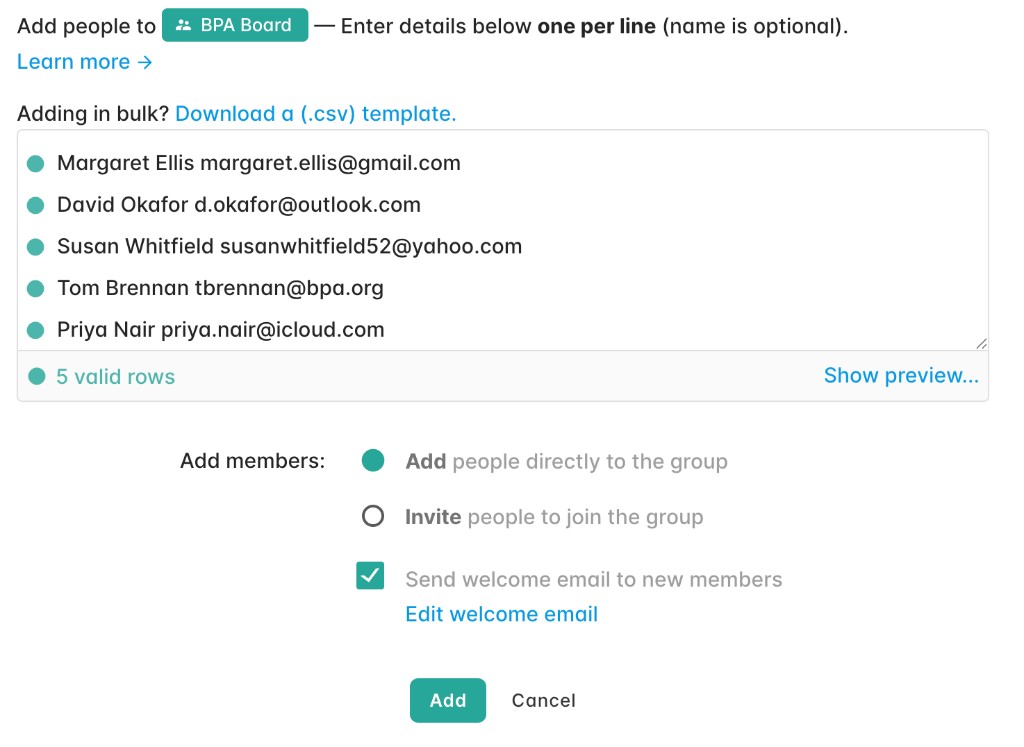
Paste names and addresses one per line, upload the CSV your current spreadsheet exports to, or sync from a membership system such as Wild Apricot so lapsed members drop off the list by themselves.
Step 3: Set who can send, and who needs approval
Choose announcement-only or discussion, and whether new members are approved before they join. A public join link with approval on is the usual choice for a members-only list.
Step 4: Send a welcome message
Write the welcome message new members receive automatically: what the list is for, who can post, and how to leave. It answers the questions that would otherwise arrive in your inbox.
Step 5: Share the join link or embed the signup form
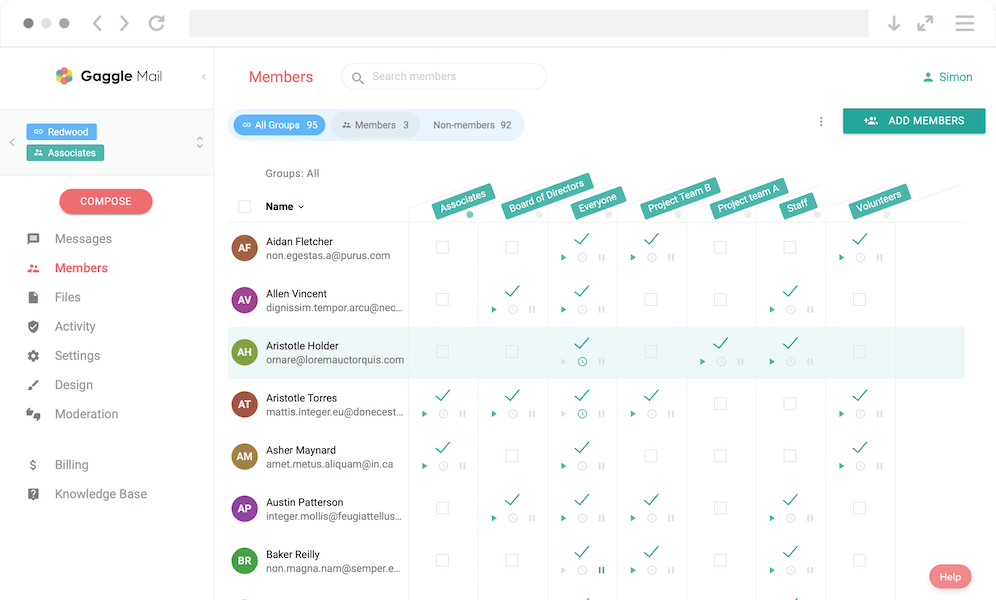
Turn on online signups and put the join link on your website, in the newsletter, or on the membership form. From now on people add themselves, and the members page is the list.
Takes 2 minutes • Free for up to 200 members • Pricing for larger groups
Keeping the List Clean Over Time
Bounces. A soft bounce (full mailbox, server down) is retried; a hard bounce (the address no longer exists) removes the address from the list automatically and is noted in the delivery report, so you find out without a bounce message landing in your inbox.
Duplicates. The list is keyed on the email address, so the same person cannot be added twice, and a member who changes address updates it themselves instead of appearing as two people.
Role changes when volunteers rotate. The classic failure is that the list leaves with the volunteer: it lived in their account, and when they stepped down nobody could send. With roles, the outgoing secretary adds the incoming one as an owner, removes themselves, and the list, its members and its archive stay exactly where they were.
Periodic review. Once a year, compare the list with the membership roll: anyone who has lapsed comes off, and members who have gone quiet can be switched to a daily digest rather than removed. If the list syncs from a membership platform, this step does itself.
GDPR and CAN-SPAM. Both come down to two things for a member list: unsubscribe must work, immediately and without asking, and once someone has left they stay left. A service that adds the link to every message and honours it for you covers both; see our GDPR statement for how Gaggle Mail handles member data.
Email List Management for Specific Organisations
Associations. The list is the membership: chapters, committees and special-interest groups each need their own, and members move between them as they renew or lapse. One directory feeding every list, synced from the membership system, keeps the secretary out of the spreadsheet. See group email for associations.
HOAs. Residents change with every sale, and the board changes every year. An announcement list residents cannot reply-all to, a private board list and a list per committee, with the resident roster maintained once, is the standard setup. See group email for HOAs.
Schools and PTAs. The whole list turns over on a schedule: a year group joins in September and leaves after graduation. A join link on the welcome pack and a yearly review against the enrolment list is all the management most parent lists need. See group email for education.
Churches. A congregation-wide announcement list, a prayer chain anyone can post to, and a list per ministry team, all reaching members in the inbox they already read. Members who find a busy list too much switch to a daily digest rather than leaving. See group email for churches.
Nonprofits. Board, volunteers, supporters: three lists with different rules, often run by three different people with no IT department behind them. Roles let each list have its own owner while the organisation, not a volunteer, holds the whole thing. See group email for nonprofits.
Email List Management Software: What to Look For
Whatever you choose, these eight things are what separate software that manages the list from software that merely stores it:
- Self-service join and leave. A join link or embeddable form, and an unsubscribe link in every message that works instantly.
- Roles. Owner, moderator and member, so responsibility can be shared and handed over.
- Custom domain. Messages from members@yourclub.org, not from a generic address.
- Bounce handling. Dead addresses removed automatically, with a report you can read.
- Archive. Every message kept and searchable, visible to members and not just the sender.
- Import and export. CSV in, CSV out, so the list is never locked in.
- Integrations. Sync from the membership platform, and an API for anything else.
- Support hours. A human to email when a message did not arrive, at the hour a volunteer is doing this work.
Gaggle Mail ticks all eight; try it free. To see how the other services compare on the same list, use our group email services comparison.
Frequently asked questions
What people are saying
Join thousands of communities using Gaggle Mail
“Gaggle Mail transformed how our neighborhood association communicates. It's so intuitive that even our less tech-savvy members participate actively. The moderation tools are exactly what we needed.“

“Overall technical execution and ease-of-use make Gaggle Mail the best option in the market.“

“Solid, stable. Just works. Great interface. Works for everything we need.“

“Amazing alternative to google groups, which forces you to have a gmail account and is complex to join as a user.“

“Your service never fails and when we have questions, you respond immediately!“

“Outstanding service. Whenever we have a question or face an obstacle someone is there to assist.“

“It's straightforward. It works. No advertising banners. We love it!“

“The customer support is outstanding. Any questions we had while setting up our alumni network were answered promptly and thoroughly.“

“I love Gaggle Mail because I have never had a problem. It just works.“

“The migration from our old listserv was smooth and the interface is modern and clean. Our members adapted to it immediately.“

“I use it for a Boy Scout troop. I tried a couple of other applications and yours is by far the best.“

Need a better way to run group email?
Create a real group email address with privacy, replies, moderation, and archive built in.
Create your free groupTakes 2 minutes • No credit card