
How-to Guide (2026)
How to Create a Listserv (Three Ways, Step by Step)
To create a listserv you need one address that delivers to every member and lets people subscribe and unsubscribe themselves. There are three ways to get one: a contact group in Gmail or Outlook (fastest, but only you can send), self-hosted software like Mailman (free, but you run a server), or a hosted service (five minutes, no server).
Updated September 2026
First, What a Listserv Is (and Isn't)
A listserv is an email list with its own address: send one message to it and every subscriber gets a copy, and subscribers can join and leave without asking anyone. The word comes from LISTSERV, software first released in 1986 and still sold by L-Soft; it is a trademark, so the generic terms are mailing list or group email (what a listserv is has the full history).
A distribution list in Outlook or a contact label in Gmail is not a listserv. It lives in one person's address book, only that person can send to it, and nobody can subscribe themselves. That distinction decides which of the three routes below you need.
Which Way Should You Make Your Listserv?
Four routes, side by side. Only the last three give you a real listserv, where members subscribe themselves and replies reach the whole group; a contact group is only a saved set of addresses in your own account.
| Comparison | Contact group in Gmail or Outlook | Google Groups with Google Workspace | Self-hosted software Mailman, Sympa, LISTSERV | Recommended Hosted service yourgroup@gaggle.email |
|---|---|---|---|---|
| A real listserv? | No | Yes, for Google account holders | Yes | Yes |
| Setup time | 5 minutes | 15-30 minutes | Days | 5 minutes |
| Who can send | Only you | Any member, if allowed | Any member | Any member, or admins only: your choice |
| Members join and leave themselves | No | Yes, with a Google account | Yes | Yes |
| Archive | No | Yes, Google account needed | Yes, via HyperKitty | Yes, searchable |
| Your own domain | No | Workspace only | Yes | Yes |
| Cost | Free | Free | Free software, plus a server and admin time | Free up to 200 members, then by group size |
| Best for | A few people you email from your own account | Organisations already on Google Workspace | Universities and teams with IT staff | Most clubs, associations, churches, HOAs and nonprofits |
In short: a contact group if only you will ever send and the list is short; Google Groups if every member already has a Google account and your admin is at home in the Workspace console; self-hosted software if you have someone to run a mail server and want to own every part of the stack; and a hosted service for everyone else, which is most groups (try it free).
Option 1: A Contact Group in Gmail or Outlook
A contact group (a "label" in Gmail, a "contact group" or "contact list" in Outlook) is a saved set of addresses in your own address book. Type its name in the To field and the whole set is filled in. It takes about five minutes:
- Open your contacts: Google Contacts, or the People page in Outlook.
- Create a label (Gmail) or a contact list or contact group (Outlook) and give it a name.
- Add each member's name and email address.
- Start a new message, type the label or group name in To (or in Bcc to hide members' addresses from each other) and send.
The limits: only you can send to it, replies come back to you alone, addresses are visible to everyone unless you use Bcc, nobody can unsubscribe themselves, there is no archive, and your provider caps how many people one message can reach (about 500 a day in Gmail, about 500 per message in Outlook.com). Fine for a handful of people you write to now and then; not a listserv.
Full steps for every version, and where each falls short, are in how to create a group email in Gmail and how to create an email group in Outlook.
Option 2: Self-Hosted Software (Mailman, Sympa, LISTSERV)
GNU Mailman and Sympa are free, open-source list managers; L-Soft LISTSERV is the commercial original, priced by quote and typically over $1,000 a year (see Listserv alternatives). All three do the real listserv job: a shared address, self-service subscribe and unsubscribe, moderation and an archive.
What you take on: a server, a domain, a mail server with SPF, DKIM and DMARC configured correctly (get that wrong and your list goes to spam), bounce handling, backups, security updates, and someone to keep it all running after the person who set it up moves on. It suits universities and organisations with IT staff who already run mail. For everyone else, see Mailman alternatives, or, if you already run a list, how to migrate from Mailman.
Option 3: Start a Listserv on a Hosted Service (Recommended for Most Groups)
A hosted service runs the mail server, deliverability and member management for you. The five steps below are Gaggle Mail's, and take about five minutes end to end.
Step 1: Choose the list address
Pick an address like yourgroup@gaggle.email, or use your own domain so messages come from an address like members@yourclub.org. This is the one address everyone will remember.
Step 2: Add your members
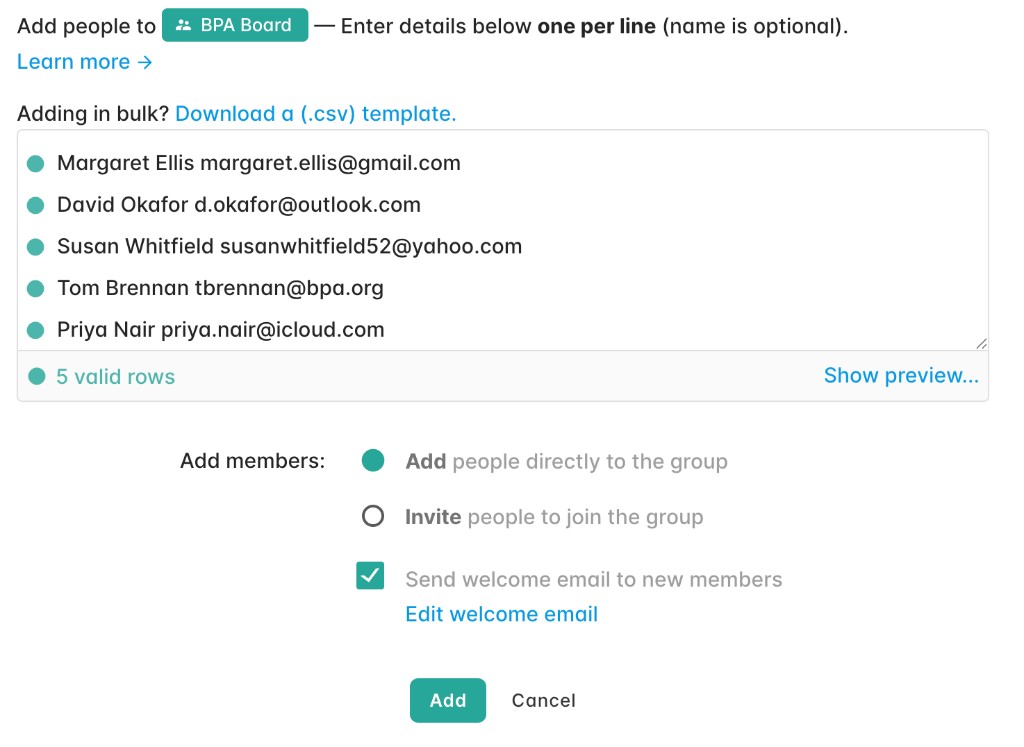
Paste names and addresses one per line, upload a CSV, or sync from a membership system such as Wild Apricot. Nobody has to create an account or confirm anything before the list works.
Step 3: Choose discussion or announcement mode, and moderation
Decide who can send: any member (a discussion list) or admins only (an announcement list). Turn on moderation if messages should be approved before delivery, and member approval if joining should be.
Step 4: Send the first message
Email the list address from your normal inbox, or compose from the dashboard. Every member gets it within seconds, and replies go to the group or just to you, as you choose.

Step 5: Share the join link
Turn on online signups and put the join link on your website or in your welcome email. From then on members subscribe and unsubscribe themselves, and the list stops being a job.
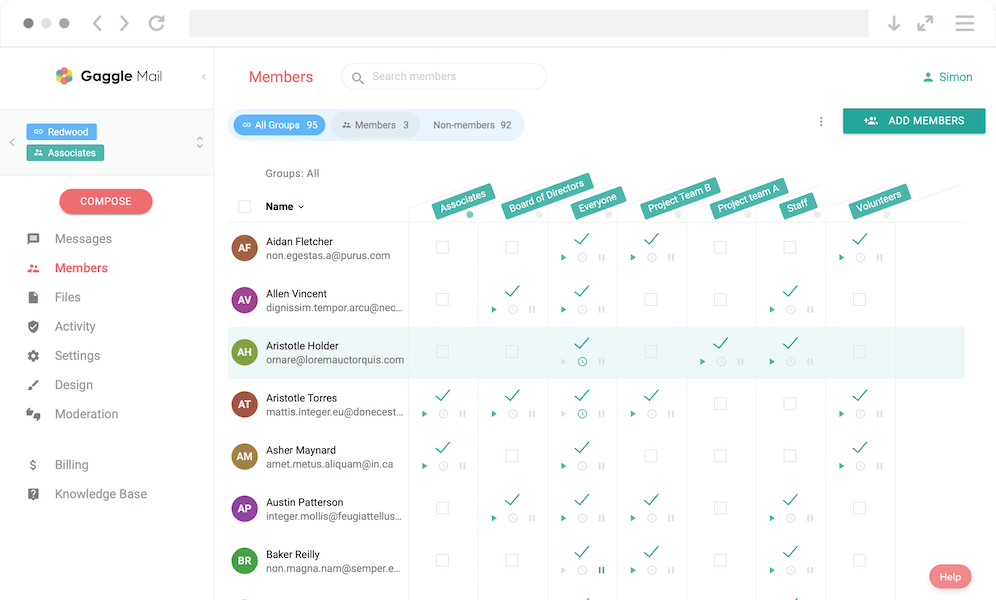
Gaggle Mail is free for groups of up to 200 members. Larger groups pay by group size, with a 30-day free trial on every paid plan; see pricing.
Takes about 5 minutes • Free for up to 200 members
After You Create It: Settings Most Listserv Owners Change in Week One
The defaults work for most groups. These are the six settings that come up in the first week, each with the help article that walks through it:
- Reply to the group or to the sender. Discussion lists usually want replies to go to everyone; announcement lists want them to come back to the sender. Choosing where replies go.
- Daily digest. Members who find a busy list too much can switch to one summary a day instead of leaving. Daily digest overview.
- Who can post. Any member, admins only, or a named list of senders. Selecting who can send.
- Welcome message. What new members receive when they join, with the list's purpose and ground rules. Customising welcome messages.
- Custom footer. Your organisation's name and links at the bottom of every message, alongside the unsubscribe link. Custom footer overview.
- Archive visibility. Whether members can browse past messages, and whether the archive is private to the list. Message archive overview.
Frequently asked questions
What people are saying
Join thousands of communities using Gaggle Mail
“Gaggle Mail transformed how our neighborhood association communicates. It's so intuitive that even our less tech-savvy members participate actively. The moderation tools are exactly what we needed.“

“Overall technical execution and ease-of-use make Gaggle Mail the best option in the market.“

“Solid, stable. Just works. Great interface. Works for everything we need.“

“Amazing alternative to google groups, which forces you to have a gmail account and is complex to join as a user.“

“Your service never fails and when we have questions, you respond immediately!“

“Outstanding service. Whenever we have a question or face an obstacle someone is there to assist.“

“It's straightforward. It works. No advertising banners. We love it!“

“The customer support is outstanding. Any questions we had while setting up our alumni network were answered promptly and thoroughly.“

“I love Gaggle Mail because I have never had a problem. It just works.“

“The migration from our old listserv was smooth and the interface is modern and clean. Our members adapted to it immediately.“

“I use it for a Boy Scout troop. I tried a couple of other applications and yours is by far the best.“

Need a better way to run group email?
Create a real group email address with privacy, replies, moderation, and archive built in.
Create your free groupTakes 2 minutes • No credit card